Downloading Sentinel-2 Data
The SKeMa kelp models require Sentinel-2 Level-2A (L2A) satellite imagery in .SAFE folder
format. This guide walks through acquiring that data from the Copernicus Data Space Ecosystem,
which provides free access to the full Sentinel-2 archive.
Step 1: Create a Copernicus Data Space Account
- Navigate to https://browser.dataspace.copernicus.eu/
- Click Register and create a free account
- Sign in to your account
Step 2: Search for Imagery
- Use the map view to navigate to your study area
-
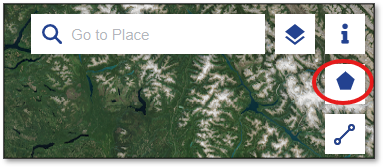
Click Create an area of interest in the toolbar
-
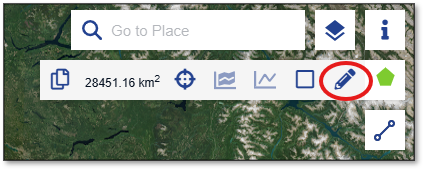
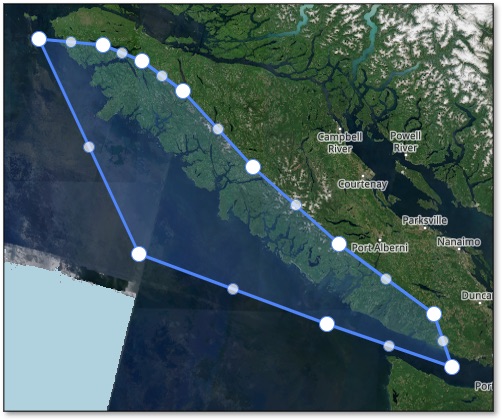
Select Draw polygon of interest and draw a polygon around your study area
-
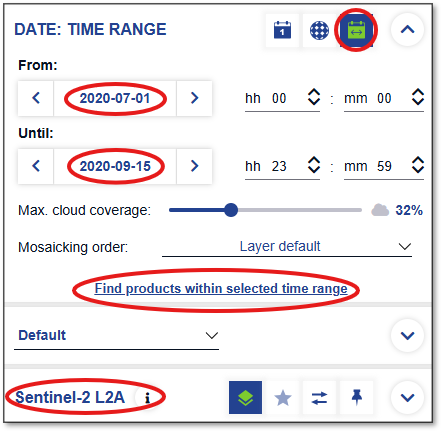
In the Search panel on the left:
- Set the Data Source to Sentinel-2 → L2A
- Set your desired date range
- Set Max. cloud coverage (e.g., 20%) to filter out heavily clouded scenes
-
Click Search to find available scenes
Choosing a scene
Select a scene with low cloud cover over your nearshore study area. Scenes with clouds over land but clear coastal water are usually fine.
Step 3: Download
-
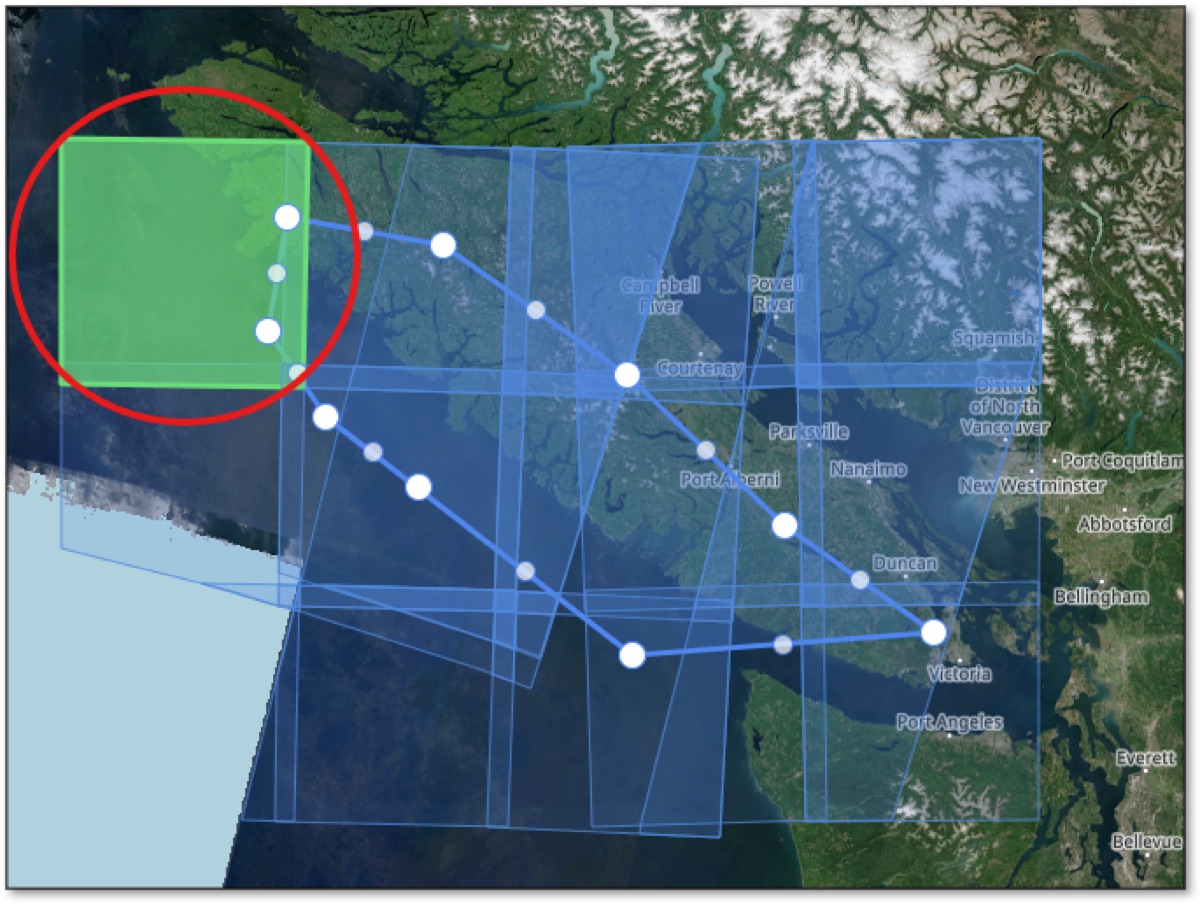
Click a scene tile in the map results to select it
-
Confirm the scene covers your area of interest with acceptable cloud cover
-
Click the download icon in the info panel — the file will be a
.ziparchive (typically 600 MB – 1 GB)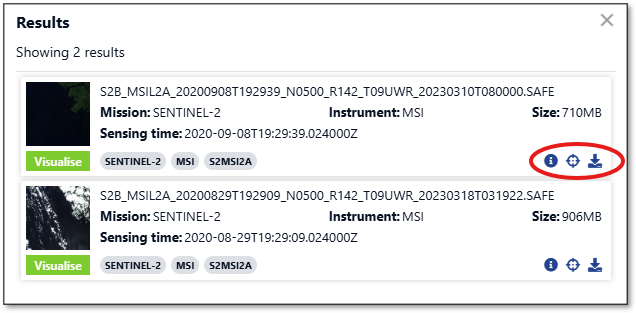
Step 4: Extract the .SAFE Folder
Sentinel-2 downloads arrive as .zip files. You must extract them before passing them to
Habitat-Mapper.
unzip S2A_MSIL2A_*.zip
Expand-Archive -Path S2A_MSIL2A_*.zip -DestinationPath .
Right-click the .zip file and select Extract All, then choose a destination folder.
After extraction you will have a folder ending in .SAFE, for example:
S2A_MSIL2A_20230801T193851_N0509_R042_T10UED_20230802T003016.SAFE/
Next Step
With your .SAFE folder ready, continue to Selecting a Model Variant
to choose which SKeMa model to run and how to invoke it.